Wallboard
The Novigem Wallboard puts your leaderboard on a screen everyone can see. It shows live points, badges, an active challenge, and a celebration the moment someone earns a badge.
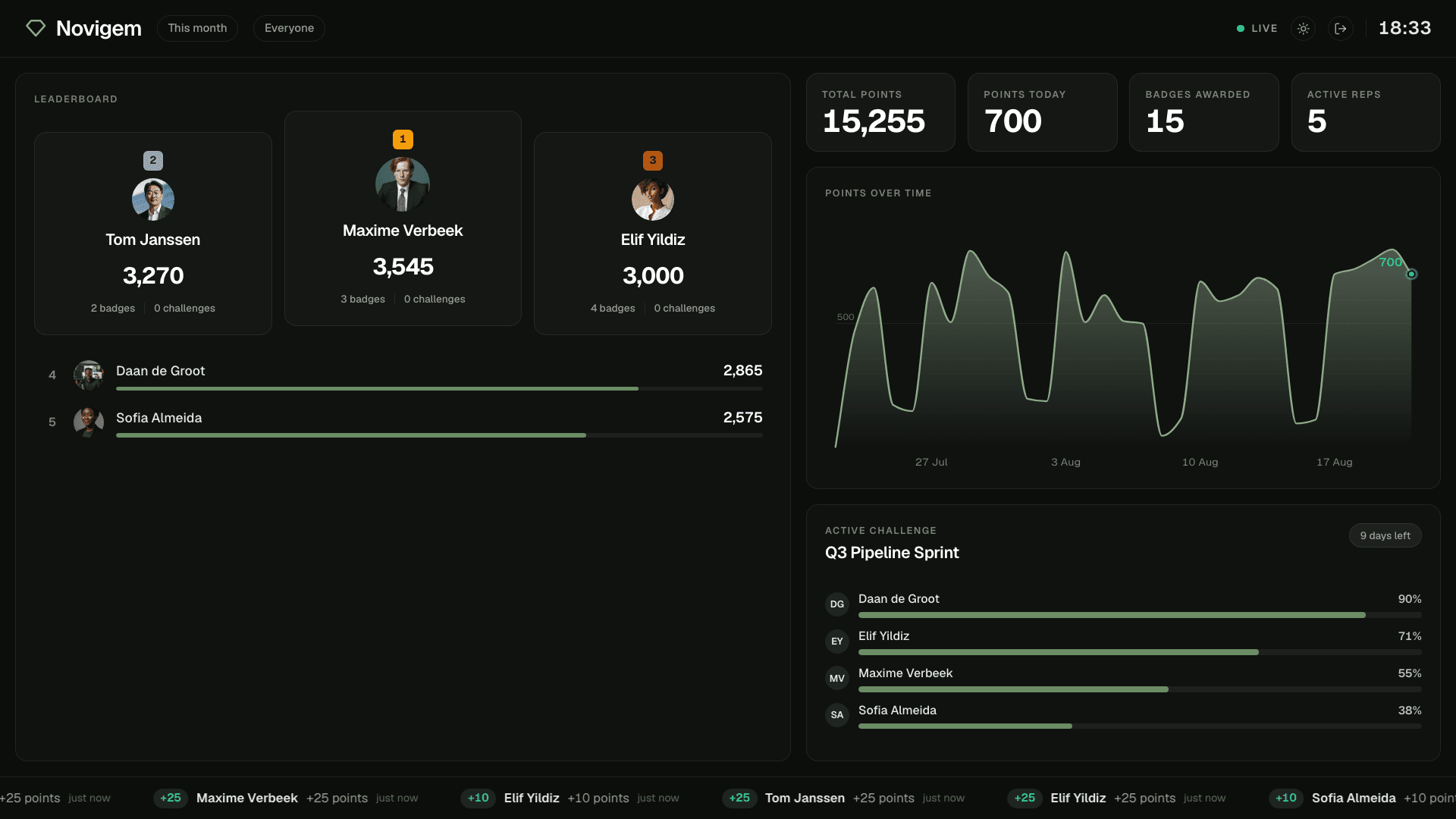
The wallboard runs at dashboard.novigem.com . It works in any modern browser, on a TV, a laptop, or a phone.
How access works
Every screen signs in with its own Salesforce login. There is no shared account and no stored credential. The wallboard queries Salesforce as the signed-in user, so each screen shows exactly what that user is allowed to see under your sharing rules.
Signing out revokes the login at Salesforce. Use the door icon in the header, or end the session from Setup → Session Management.
Setup
- Install the Wallboard Connector in your org. It contains one OAuth app definition and nothing else: Install the connector .
- Open dashboard.novigem.com on the screen you want to use.
- Click Sign in with Salesforce and log in. Sandboxes use the Sign in to a sandbox instead link.
- Allow the access request. The board loads with your org’s data.
Tip: For an office TV, sign in once with a dedicated viewing user. The session stays valid for 30 days, and the board refreshes itself.
What is on the board
- Leaderboard. Top 3 on a podium with photos, ranks 4 to 8 below.
- Points over time. A daily graph for the selected period.
- Stat tiles. Total points, points today, badges awarded, active reps.
- Active challenge. The running challenge with its top participants.
- Newsflash. A ticker of recent points and badges, with the record that caused them.
- Celebrations. A full-screen takeover with confetti when someone earns a badge, within seconds of the award.
Compose a screen in Display settings
Open the gear in the wallboard header, or go to dashboard.novigem.com/settings . The page shows a live preview of the board next to the controls, so you see the result while you build it.
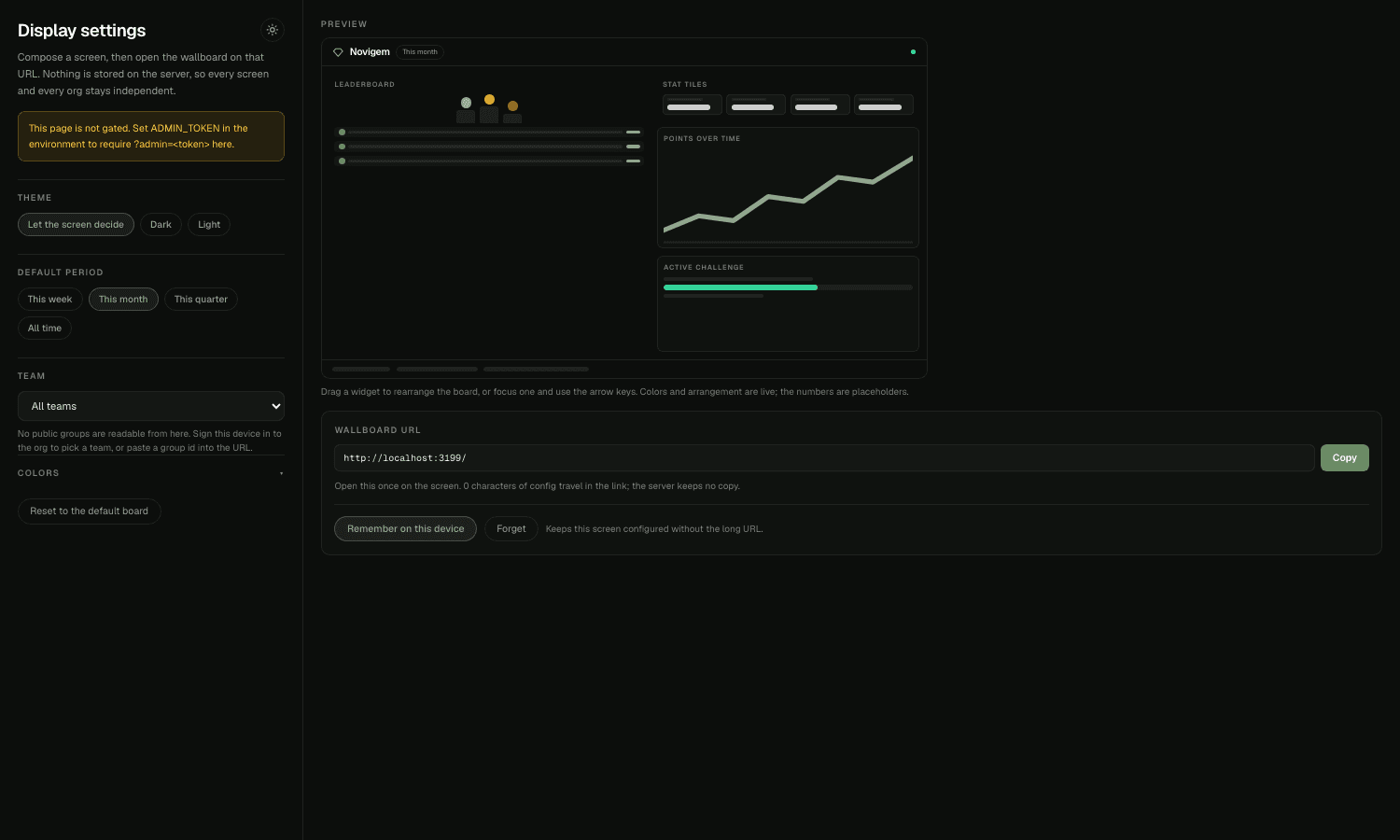
You can set:
- Theme. Follow the screen, or pin dark or light.
- Default period. Week, month, quarter, or all time.
- Team. One Public Group, or every team.
- Widget arrangement. Drag a widget in the preview to reorder it, or move it to the other column. Focus a widget and use the arrow keys for the same result.
- Colors. Background, panels, accents, and the podium colors. Any CSS color works, and an empty field means the theme default.
When the board looks right, use the URL under the preview:
- Open it once on the screen. The configuration travels in the link, so the wallboard needs nothing else.
- Or press Remember on this device, and that screen keeps the configuration without the long URL. Forget clears it.
Nothing is stored on our side. The configuration lives in the link, or in a cookie on the screen itself, which is why two screens in the same org can show different boards and two customers never share anything.
Settings needs the same Salesforce sign-in the board needs. It stores nothing and grants no extra access: a board composed here still queries as the user signed in on that screen.
Configure a screen by its URL
If you prefer to skip the settings page, the original parameters still work:
| Parameter | Effect | Example |
|---|---|---|
period | week, month, quarter, or all | ?period=week |
team | Show one team only (a Public Group Id) | ?team=00G... |
theme | light pins the light theme | ?theme=light |
You can also click the period chip, the team chip, and the theme toggle in the header.
Requirements and notes
- Novigem must be installed in your org. Without it, the wallboard shows an install prompt instead of an empty board.
- Teams on the board follow your Public Groups, the same way team scoping does.
- Photos come from Chatter profile photos. Users without one get initials.