Badges field reference
All fields available when creating or editing a Badge in Novigem.
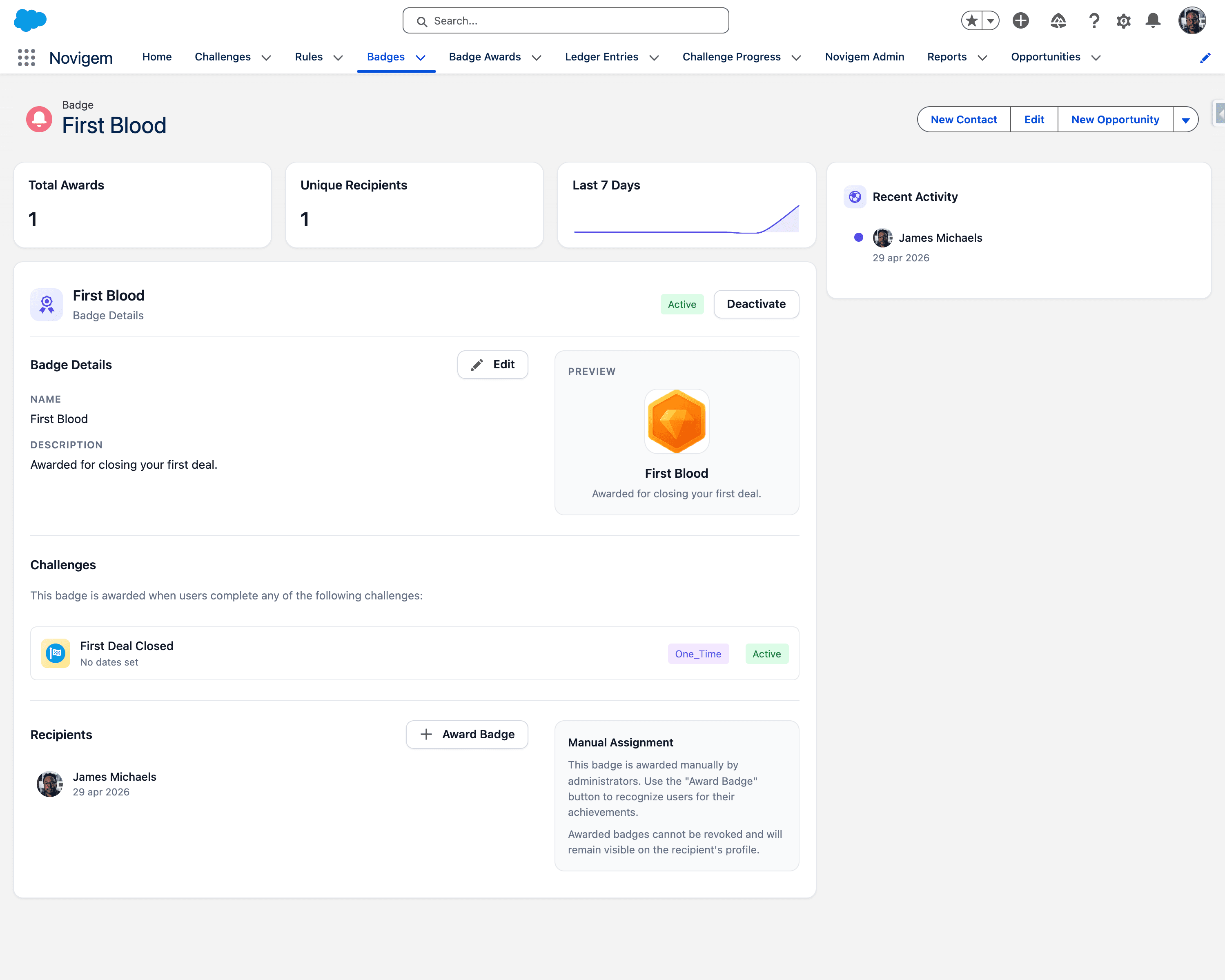
Badge details
| Field | Description |
|---|---|
| Name | The display name. Keep it short and recognizable: “Call Champion”, “Pipeline Pro”. |
| Description | What the badge represents. Users see this on their profile. Example: “Completed 100 calls total.” |
Icon
Select the badge icon color from the Badge Builder. The builder shows a live preview using the globally configured badge shape.
Available colors: gold, silver, bronze, ruby, emerald
The shape is set globally in Badge Style settings. The combination of color and shape determines how the badge looks. A gold hexagon differs from a gold circle.
Preview
Shows how the badge will appear to users, including icon and description.
Status
| Status | Description |
|---|---|
| Active | The badge can be awarded and is visible to users. |
| Inactive | The badge is hidden and cannot be awarded. Existing awards are not affected. |
Challenges
Shows which challenges use this badge as a completion reward. If none, you will see: “This badge is not configured as a reward for any challenge yet.”
To link a badge as a completion reward, set it in the Challenge’s Completion Badge field.
Recipients
Lists everyone who has been awarded this badge: user name and award date.
Manual assignment
Use the + Award Badge button to award the badge to a specific user. Search by name, select, confirm. The award fires immediately.
Awarded badges cannot be revoked. They stay on the recipient’s profile permanently.
Common patterns
Challenge completion badge: link the badge on the Challenge’s Completion Badge field. It gets awarded automatically when a user completes the challenge.
Manual recognition badge: for achievements that cannot be automatically tracked. Award it directly using the ”+ Award Badge” button.
Next steps
- Badge Style settings: set the org-wide badge shape
- Challenges builder: link badges as completion rewards
- Core concepts: Badges: how badges fit into the bigger picture