Lightning Components
These are the Novigem Lightning Web Components you add to your Salesforce pages via Lightning App Builder.
Full catalog
Every component Novigem exposes to Lightning App Builder, and where each one can be placed. Anything not listed here is internal to the package and does not appear in the component palette.
| Component | App Builder label | Home page | App page | Record page | Tab | Utility bar |
|---|---|---|---|---|---|---|
| Leaderboard | Leaderboard | ✓ | ✓ | |||
| My Challenges | My Challenges | ✓ | ✓ | |||
| My Points | My Points | ✓ | ✓ | |||
| My Badges | My Badges | ✓ | ✓ | |||
| Quick Stats | Quick Stats | ✓ | ✓ | |||
| Coaching & Celebration | Coaching & Celebration | ✓ | ✓ | ✓ | ✓ | |
| Team Pulse | Team Pulse | ✓ | ✓ | ✓ | ||
| Ledger | Ledger | ✓ | ✓ | ✓ | ||
| Badge Activity | Badge Activity | ✓ | ||||
| Challenge Builder | Challenge Builder | ✓ | ✓ | |||
| Rule Builder | Rule Builder | ✓ | ✓ | |||
| Badge Builder | Badge Builder | ✓ | ✓ | |||
| Novigem Admin | Novigem Admin | ✓ | ✓ |
Most orgs never place the builders or the admin console by hand. Novigem ships record pages and tabs that already host them. The entries above are for admins who want them somewhere else.
Leaderboard
Shows the ranked list of all participants. Users see where they stand relative to the rest of the team.
Shows: ranking by total points, points per user, current user highlighted.
Placement: Salesforce Home page (quick view on login), or a dedicated app page.
My Challenges
A personal view of the current user’s active challenges, with progress bars and completion status.
Shows: active challenges, progress toward each goal, points earned per challenge, completion badges.
Challenges that have both a start and an end date also show a goal pace chip, so a rep can see whether they are on track for the deadline rather than only how far along they are. See Goal pace.
Placement: Salesforce Home page alongside the Leaderboard works well for a full dashboard.
My Points
The current user’s ledger history: which rules fired, how many points, and when.
Shows: total points, current rank, a 30-day trend chart, and a filterable transaction history.
Placement: Salesforce Home page, or an app page as a detail view.
My Points is not available on the utility bar. Coaching & Celebration is the only Novigem component with a utility bar target.
My Badges
The current user’s badge wall: what they have earned, and what is still available to earn.
Shows: earned badges with award date, plus the badges still on offer, so a rep can see what is worth going after next.
Placement: Salesforce Home page, or an app page next to My Challenges.
Quick Stats
A compact profile card for the current user. Useful when you want a rep’s standing visible without giving up the space a full leaderboard needs.
Shows: profile photo, total points, current rank, badges earned, active challenges, and the daily and weekly point streaks with the personal best for each.
Placement: Salesforce Home page, or an app page next to the Leaderboard.
Coaching & Celebration
The same component covers two jobs in one slot: it celebrates awards as they land, and at rest it shows the rep their next best action.
The celebration side is an animated overlay that appears when a user earns points or completes a challenge. It shows a confetti animation, the points and rule that triggered it, and any badge earned. If multiple events fire at once (say, a rule award plus a completion bonus), they are combined into one card. The component subscribes to the Award_Granted__e Platform Event, so no page refresh is needed.
The coaching side fills the same slot when there is no celebration to show. The card is titled Your next best action, or Keep it going when the signal is positive.
This component was previously labelled “Novigem Challenge Celebration”. In Lightning App Builder it is now listed as Coaching & Celebration. The API name did not change, so pages that already use it keep working with no edits.
Properties:
| Property | Default | What it does |
|---|---|---|
| Enabled | On | Turns the component on. Switch it off to hide it without removing it from the page. |
| Show next best action | On | Shows the rep coaching feed in the slot at rest. An award takes the slot for the celebration, then the feed returns. Turn it off for a celebration-only placement. |
Shows: confetti animation, points earned with rule name, challenge completion message, badge earned (if one was configured), and the coaching feed at rest.
Recommended placement:
Place it on the Opportunity record page first. Celebrations appear right where the rep is working when they close a deal or log activity. Also add it to the Salesforce Home page to catch any activity that happened elsewhere.
The component only fires on pages where it is placed. If you only place it on the Home page, a rep working on an Opportunity will not see the celebration until they navigate away. Put it on both.
The coaching feed only has content once the nightly job has run. On a fresh install the slot stays empty until then, which is expected and not a placement problem.
Team Pulse
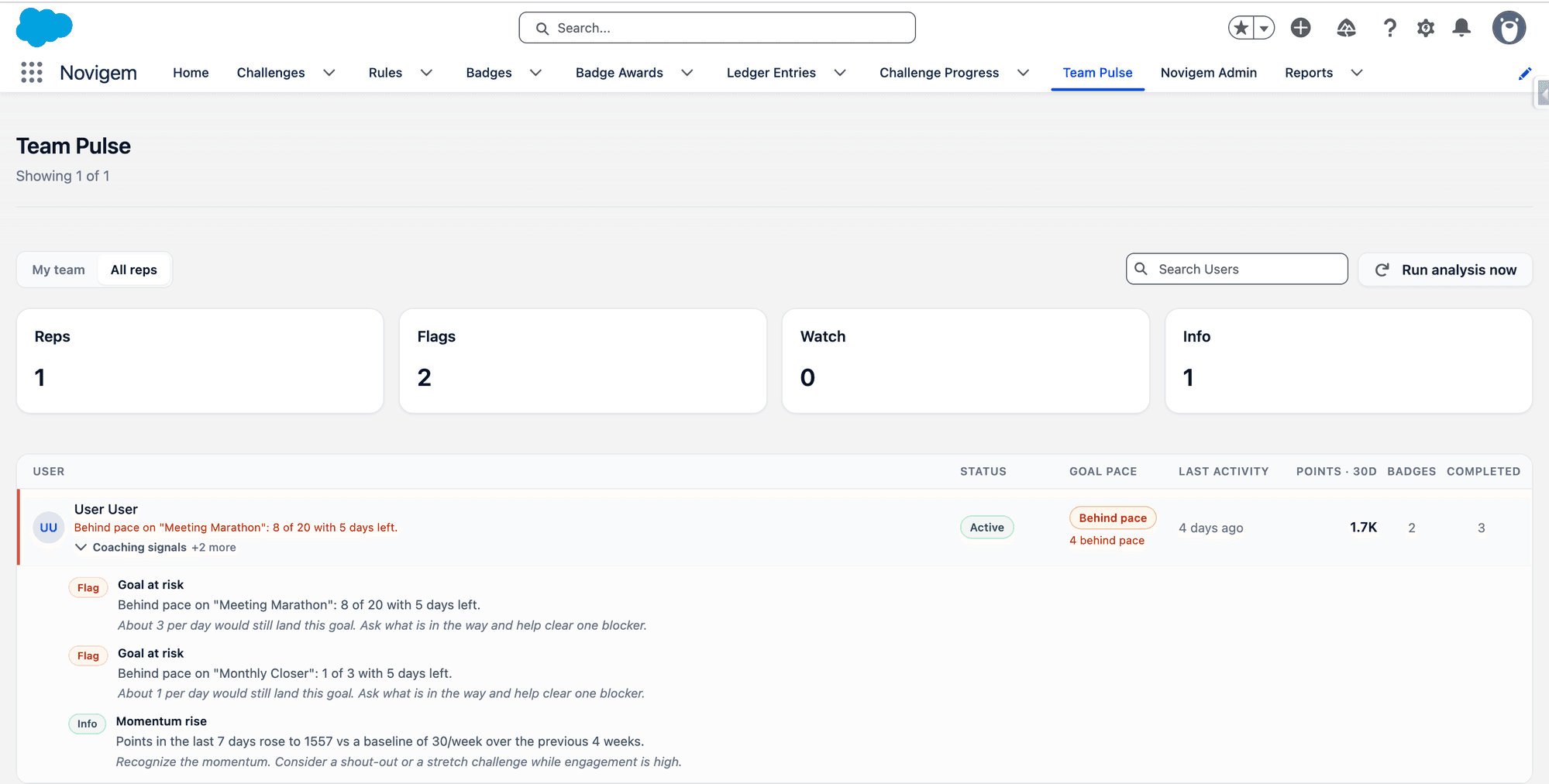
A manager view of the team. It shows each direct report’s engagement status, goal pace, last activity, recent points, badges, completions, and open coaching signals, with at-risk reps sorted first.
Team Pulse ships as its own tab, so most orgs need no App Builder work to use it. It is also exposed as a component if you want it inside an existing page.
Placement: available in Lightning App Builder as Team Pulse for app pages, Home pages, and tabs.
The team list comes from the standard Manager field on the Salesforce User record. If that field is blank on your reps, the manager sees an empty screen.
Team Pulse needs the Novigem Manager permission set. Admins additionally get the all-reps scope, the Run analysis now action, and suggested challenges.
An empty Team Pulse is almost always the Manager field, not the component. Populate it on the User records before assuming something is broken.
Ledger
An activity timeline of points and badge awards. Where My Points is scoped to the running user, Ledger is scoped to whatever you put it on.
On a Rule, Challenge, or Badge record page it shows the activity for that record: who earned points from this rule, who is progressing on this challenge, who has been awarded this badge. On an app or Home page it shows recent activity generally.
Properties (record page):
| Property | Default | What it does |
|---|---|---|
| Title | Points Activity | The card heading. |
| Subtitle | Recent activity | The line under the heading. |
| Max items | None | How many entries to show before the list stops. |
Placement: the Rule, Challenge, and Badge record pages, where the record context makes the timeline meaningful.
Badge Activity
A recent-award timeline for one badge, designed for the sidebar of a Badge record page. It only accepts a Badge record page as a target.
Shows: who was awarded this badge and when, newest first.
The builders
Challenge Builder, Rule Builder, and Badge Builder are the full-page editors behind the Challenges, Rules, and Badges tabs. Novigem ships record pages that already host them, so placing one by hand is only needed for a custom layout.
| Component | Record page | App page |
|---|---|---|
| Challenge Builder | Challenge__c | Create mode only |
| Rule Builder | Rule__c | Create mode only |
| Badge Builder | Badge__c | Create mode only |
Each takes a Mode property. On a record page it defaults to viewing or editing the record in context; on an app page it only supports create, which is how you build a “new challenge” or “new rule” landing page.
The builders require the Novigem Admin permission set. A user without it sees an “admin access required” message rather than the editor.
Novigem Admin
The admin console: Overview and Challenge Impact, the five settings screens (General, Notifications, Badge Style, Integrations, Scheduled Jobs), and Support.
It ships as the Novigem Admin tab, so most orgs never place it manually. It is also available for app pages.
Access is gated by the Novigem_Admin_Access custom permission, included in the Novigem Admin permission set. See Permission sets.
How to add components
- Go to the page you want to update in Salesforce
- Click the gear icon and select Edit Page to open Lightning App Builder
- Search for the Novigem component name in the left panel
- Drag it onto the layout
- Save and Activate the page
For the Home page, a two-column layout with the Leaderboard on one side and My Challenges on the other is a good starting point.
Permissions
Users need read access to these objects for the components to show data:
| Object | Required for |
|---|---|
Challenge__c | My Challenges, Leaderboard, Quick Stats, Team Pulse |
Challenge_Progress__c | My Challenges, Leaderboard, Quick Stats, Team Pulse |
Ledger_Entry__c | My Points, Quick Stats |
Badge__c | My Challenges, Quick Stats, Coaching & Celebration |
Badge_Award__c | My Challenges, Quick Stats, Coaching & Celebration |
Rule__c | My Points (shows the rule name) |
Performance_Signal__c | Coaching & Celebration (the coaching feed), Team Pulse |
Assign the appropriate Novigem permission set to grant access. Read on Performance_Signal__c is granted by both Novigem User and Novigem Manager.
See also
- Getting started: Installation
- Permission Sets: who can see Team Pulse and coaching signals
- Troubleshooting: component visibility issues
- Core concepts: Progress tracking